Most pages don't fail because they look dated. They fail because a visitor hits uncertainty, extra effort, or a blocked path and leaves. Web design that converts fixes those problems in order, starting with what people need to act and ending with proof that a change worked. Polish comes last, not first.
The Conversion Framework at a Glance
About 7 in 10 online carts never become purchases. The Baymard Institute checkout usability research puts the global average abandonment rate at 70.19% and estimates that better checkout design alone could lift conversion by 35.26% on large e-commerce sites. That estimate is a modeled opportunity, not a guarantee. Excessive fields, unclear costs, weak error handling, and forced account creation can all get in the way of a purchase.
| Step | Question it answers | Main check | Metric to watch |
|---|---|---|---|
| 1. User research | What stops people from acting? | Support tickets, call notes, session recordings | Drop-off by step |
| 2. Information architecture | Can visitors reach the next step in two or three clicks? | Click path review, card sort | Clicks to primary CTA |
| 3. Speed and accessibility | Can every visitor reach the CTA? | Core Web Vitals and keyboard test | Completion rate by device |
| 4. Messaging and value props | Can a stranger say what you offer in five seconds? | Five-second test | Bounce rate on landing page |
| 5. Visual hierarchy | Does the eye land on the action first? | Squint test, heatmap review | CTA views versus clicks |
| 6. CTAs | Is the button specific and low-risk? | Button copy and friction review | CTA click-through rate |
| 7. Social proof | Is proof near each point of doubt? | Placement audit | Conversion rate with and without proof |
| 8. A/B testing and analytics | Did the change help? | One variable, planned sample size | Signups, enrollments or registrations |
This sequence applies to SaaS trials, course enrollment, and webinar registration as well as shopping carts. Unclear pricing, long forms, or vague next steps can prevent visitors from completing any of them. For a sense of what "good" looks like numerically, compare against landing page conversion rate benchmarks. Baymard rates 65% of reviewed checkouts as mediocre or worse and only 2% as good. Based on those findings, we recommend checking and removing friction before investing in a visual redesign.
Work through the steps in order. A stronger button cannot fix a page that answers the wrong question, and persuasive copy cannot compensate for a slow, inaccessible page. Each step needs a check you can run in an afternoon, a metric that should move, and a stop rule for moving on. If video, animation, or chat widgets slow the page or block access to the main action, pause before adding more persuasion.
Score your page against all eight rows first. Start at the first row that fails.
Fix that failure, measure the result, then move down the list.
How to Find Out What Stops Your Visitors
A page can lose a visitor before its offer has a chance to persuade. Start with the evidence already available, then connect each objection to a specific page change. The infographic shows five steps, while the process below has six. Use the written six-step process as your checklist.
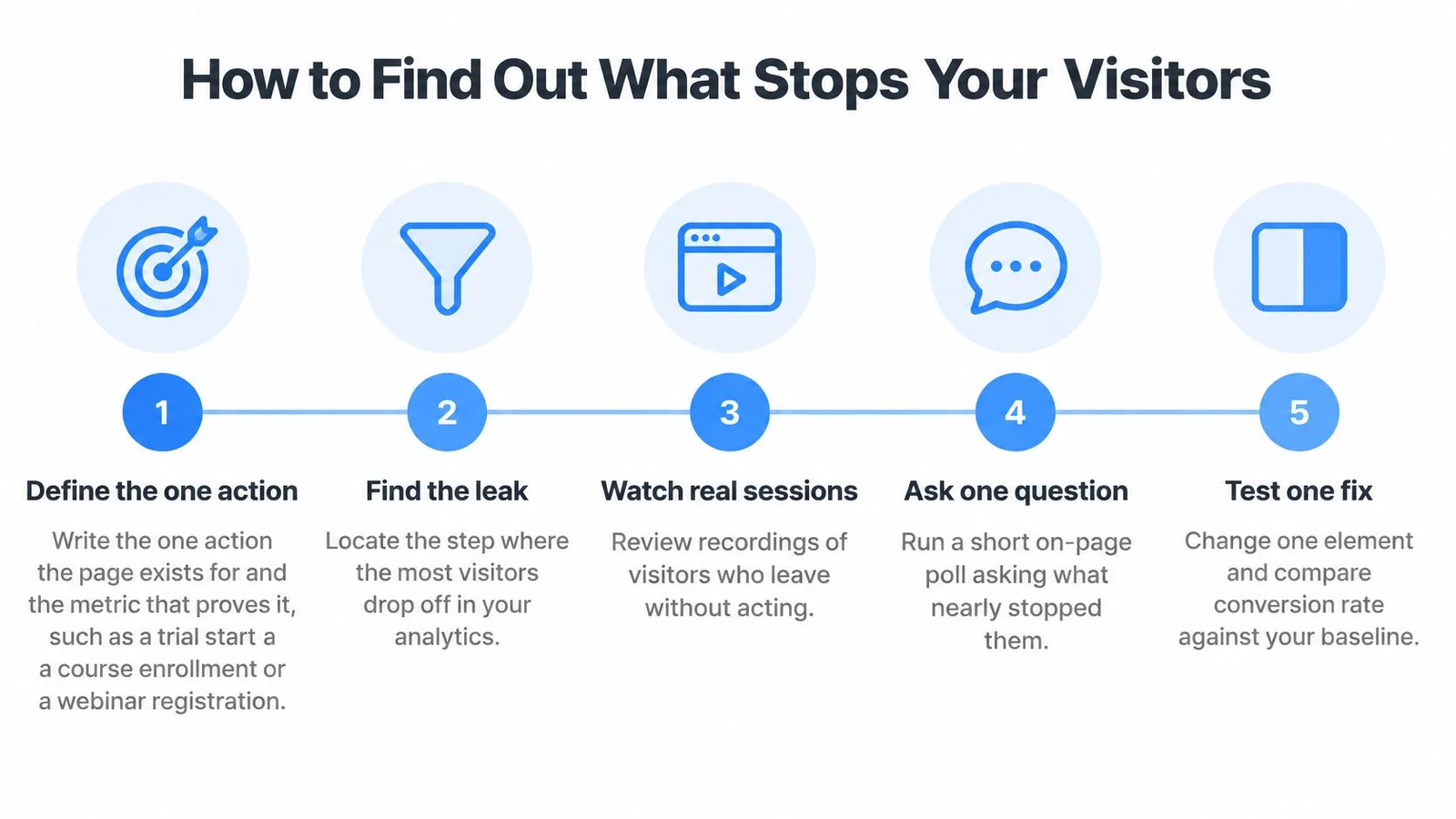
Six Steps to an Objection List
- Define the one action. Name the single action the page should produce, such as a trial start, course enrollment, or webinar registration. Choose one metric that confirms it happened. Keep the target focused.
- Collect existing questions. Review sales call notes, support tickets, chat logs, and recent signup or refund emails. Copy repeated questions in visitors' own words. Group them by recurring customer pain points so patterns are easier to use in your page copy.
- Watch real sessions. Review five to eight recordings of visitors who reached the page but left before clicking the button. Note where they scroll back up, hover over prices, or pause at a form field. Record the point where each person stalls.
- Run a five-second test. Show the page to five people in your target audience for five seconds. Ask what the product is and who it is for. Record vague or incorrect answers without correcting them.
- Sort objections into three groups. Use price, fit, and trust. Price covers cost and value. Fit covers whether the offer suits someone like the visitor. Trust covers whether the claims feel credible. Mark the largest group.
- Turn each objection into a page change. For every objection, write down what to add, move, or answer, and where it should appear. Check whether the change addresses the concern directly.
What This Looks Like in Practice
On a course page, repeated questions about whether beginners can keep up point to a fit objection. Add a clear audience line near the top and a short explanation of what beginners need before starting. Changing the color scheme would not answer the question.
Refund emails can show where the product failed to match the page's promise. Chat logs reveal what visitors needed to know just before they considered buying. Review both, and check whether the page makes that information easy to find.
Keep the list ranked and focused. Start with the top three objections when deciding what to say, which action to ask for, and what proof to show. Lower-priority concerns can wait until the main barriers are addressed.
Map the Path to the Primary Action
Count the path before you rewrite anything. Structure decides whether good copy ever gets read.
- Count every step. List each click, scroll, tab, or form step from entry page to primary action. Write the total number down.
- Apply the click rule. The primary CTA should be reachable in two or three clicks from entry. On mobile, it should be visible without opening a menu.
- Run a card sort. Write each page section on a card. Ask five to eight people from your audience to group the cards and name the groups. Compare their labels with your navigation labels.
- Mark mismatches. If visitors file the syllabus under pricing while your page puts it under curriculum, your labels are wrong, not theirs.
- Reorder by question order. Arrange sections as visitors ask them. What is it, who is it for, how does it work, what does it cost, what happens next.
- Remove competing links. Move or delete anything that pulls people away from the primary action, such as a blog link in the hero or a second signup route.
A webinar page often hides its agenda three clicks deep behind a tab. Moving the agenda into the main scroll cuts the route to registration to one scroll. Measure clicks to the primary CTA before and after. Stop when a typical visitor reaches the button without hunting for it.
Fix Speed and Access Before Adding Persuasion
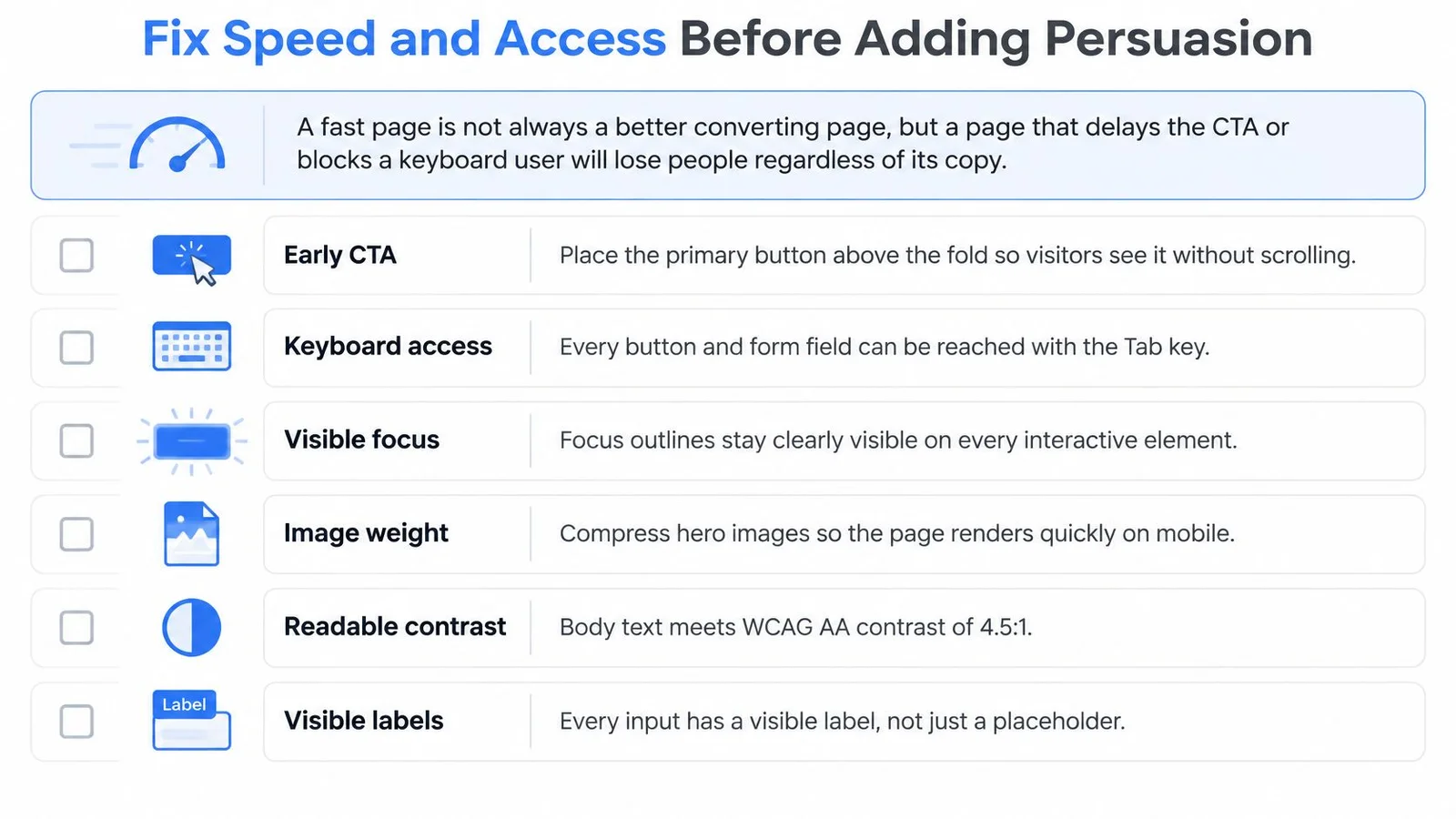
A slow page or inaccessible form can prevent visitors from reaching the offer at all. Adding stronger copy will not fix a button that responds late or a signup form that cannot be completed with a keyboard. Check performance and access before refining persuasion.
Measure What Visitors Actually Experience
Check three Core Web Vitals on mobile using real-user data, not a single lab score. Largest Contentful Paint tracks when the main content appears. Interaction to Next Paint reflects how quickly the page responds to taps. Cumulative Layout Shift captures elements moving as the page loads. Segment results by device and connection; desktop averages can conceal mobile problems. Start with this guide to ways to improve page performance.
Reserve space for images and widgets so the CTA stays put as the page loads. For video, animation, and chat widgets, use the stop rule below. Check the page on a mid-range phone with a slow connection before deciding whether heavy content belongs in the initial load.
Stop rule: If an element delays or moves the CTA on a slow phone, defer it. No exceptions for decorative content.
Treat Accessibility as a Conversion Risk
The Contentsquare Foundation 2025 e-commerce accessibility snapshot reports on accessibility barriers in e-commerce shopping journeys and WCAG 2.2 criteria. Its findings point to a practical risk: when visitors cannot read, understand, or operate an interface, they may be unable to complete the intended action. That is a reason to test access before investing in more persuasive copy, not proof that any particular barrier caused a lost conversion.
Run these checks before redesign work:
- Keyboard completion: Complete signup or checkout using only a keyboard, in a logical order.
- Visible labels: Give every form field a visible label. Placeholder text alone is not enough.
- Text error messages: Show errors beside the relevant field and explain how to fix them.
- Visible focus states: Keep the selected element easy to identify.
- Captions and transcripts: Provide both for video so people can access its content without sound or vision.
- Reduced motion: Respect reduced-motion preferences rather than forcing animation.
- Non-chat alternative: Offer another way to get the same answer as chat support.
Social proof or AI assistance cannot make an inaccessible form usable. Fix the interface first, then assess whether persuasion helps visitors who can complete the path.
How to Write a Value Proposition Visitors Get in Five Seconds
Compare two headlines. "An all-in-one platform for growth" says almost nothing. "Turn webinar viewers into paying students this month" names a person, a task, and a result. The second one works because a stranger can repeat it back after one glance.
The Four Parts
A working value proposition has four parts, and most weak headlines are missing at least two.
- Who it's for: Name the audience directly or make it obvious from the task described.
- What it does: Use a plain verb and a concrete object. Avoid platform, solution, and ecosystem.
- The outcome: State what changes for the visitor, in terms they'd use themselves.
- One line of proof: Add a checkable detail, such as who uses it or what it replaces.
The supporting line under the headline handles the first objection from your research list. Keep it to one sentence. If visitors worry about setup time, that line answers setup time. If they worry about skill level, it answers skill level. Don't use it for a second promise.
State price plainly when it's safe to do so. "Free to start" or "Enrollment opens Monday" removes a common reason to leave and check a competitor. Leave price out only when it truly depends on scope, and say what it depends on instead.
Mistakes That Kill Clarity
Jargon is the main one. Claims nobody can check come second. More than two promises in one headline comes third, followed by vague verbs like enable and open up. Each one forces the visitor to do interpretation work you've avoided doing.
If a visitor needs a second read to understand the offer, the headline has failed.
Write three headline variants, each built from a different objection on your list. Run the five-second test from the research step on each one with people who haven't seen the page. Pick the variant strangers describe most accurately, not the one your team likes most.
Finally, check agreement. The headline promise and the primary button must say the same thing, so a visitor can act on the promise without scrolling to confirm it. If the headline sells a free trial and the button says "Get started," tighten the button. Web design that converts depends on that kind of plain consistency.
Guide the Eye From Headline to Button
One rule covers most of visual hierarchy. Each screen gets one dominant element, usually the headline or the offer, and everything else is clearly secondary. If two elements compete, visitors read neither properly.
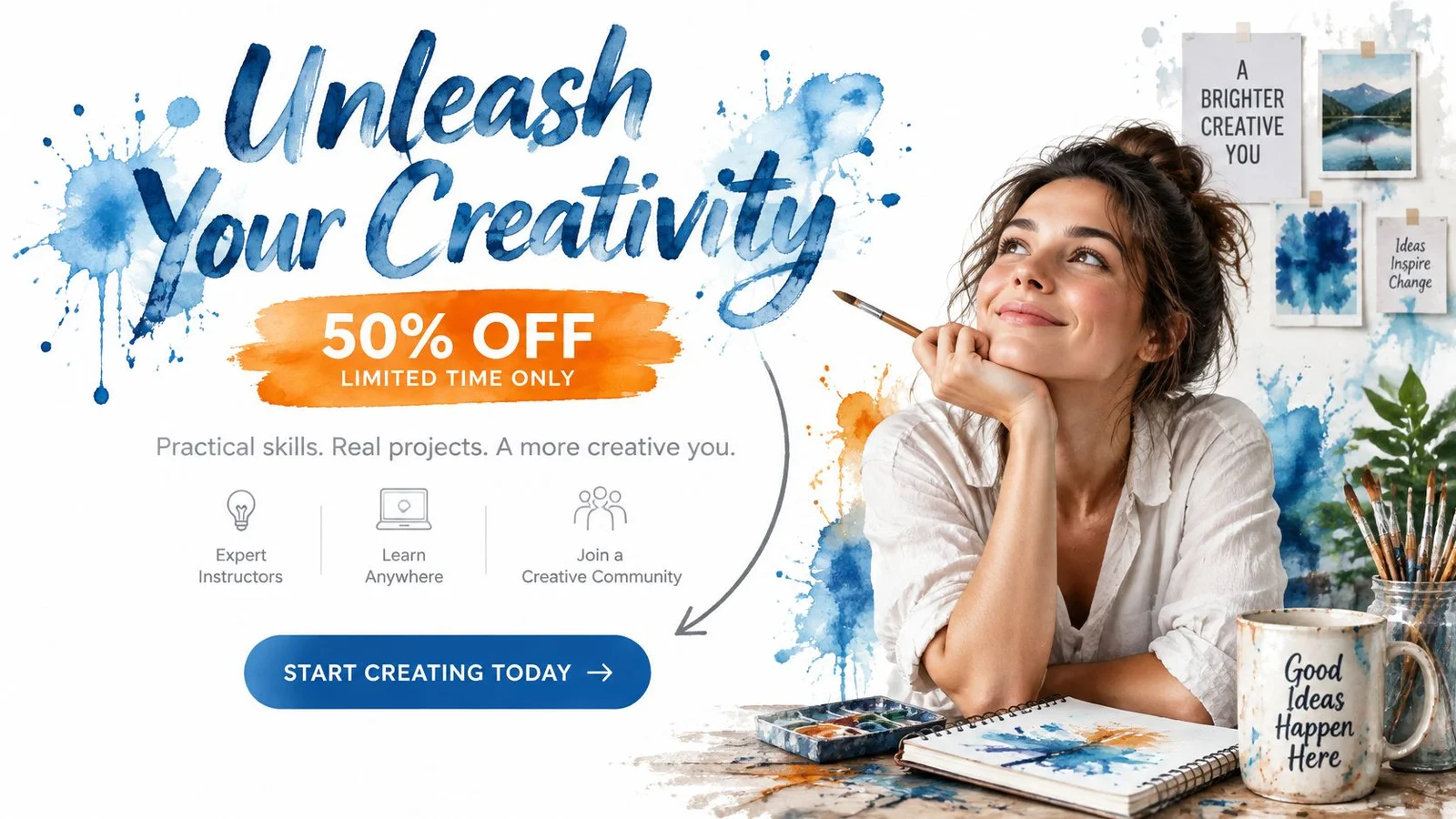
The course page below shows the principle in a simple form, with one person, one offer, and one clear focal point.
Build the Hierarchy With Four Levers
Use size first. The dominant element should be noticeably larger, not slightly larger. Use spacing second, with generous whitespace around the primary action so it stands apart from surrounding text. Use position third, placing the offer where reading naturally starts. Use color last, and sparingly. Color works when it's rare. A page where everything is highlighted highlights nothing.
Run a squint test when you're unsure. Blur your vision or shrink the page and note what you see first, second, and third. If a decorative image wins, demote it.
This short walkthrough shows how layout choices direct attention toward an action.
Button Rules That Hold Up
Keep one primary button per view. Give it a color that differs from the rest of the page and a label naming the action and outcome. "Start my free trial" beats "Submit" because it tells visitors what happens next. Vague labels make people pause to predict consequences, and some won't bother.
Place the primary CTA above the fold and repeat it after each long section. Add a short reassurance line beside it when it's true, such as "No credit card required" or "Cancel any time." Secondary actions like "Watch the demo" or "See the syllabus" should look quieter, as text links or outline buttons.
On a long course page, a sticky mobile button keeps enrollment in view while visitors read the curriculum. That's hierarchy doing practical work. Avoid the usual traps instead. Carousels in the hero rotate away from your best message. Two equal buttons force a choice visitors didn't come to make. Decorative images near the offer steal the first look.
Place Social Proof Where Doubt Peaks
Doubt peaks in predictable places. At the headline, visitors ask if this is real. At pricing, they ask if it's worth it. At the form, they ask what happens to their data. Put proof beside each question instead of collecting it in a testimonial wall at the bottom. Timed web popup design can help in some cases, but for complex offers a short conversation usually beats another floating notice. See why social proof notifications don't work for complex products.
| Proof type | Best placement | Use when | Example |
|---|---|---|---|
| Named customer testimonials | Beside the signup button or pricing | Visitor doubts the results | Quote with full name, role and company |
| Client logo strip | Under the headline | Visitor asks whether you are legitimate | Six to eight recognizable logos you have permission to show |
| Third-party review scores | Near pricing and checkout | Visitor compares you with rivals | Score with review count, linked to the source |
| Case result with a number | Mid-page, before pricing | Visitor asks whether it fits their situation | Metric with timeframe and starting point |
Follow rules that keep proof credible. Use named testimonials with full name, role, and company. Show only logos you have permission to display. Give case results a timeframe and a starting point, and study strong 5-star review examples for the level of detail that reads as real. Never invent counts or reviews. One vague quote from "Sarah, happy customer" can damage trust more than no quote at all.
Timing matters as much as placement. Load the core page and primary CTA first, then let heavier proof appear on scroll or hover. Treat mobile performance as a conversion variable measured by real-user outcomes, tracking Core Web Vitals by device and network as set out in the Think with Google Milliseconds Make Millions report. A rating widget that delays the first tap costs more trust than it adds.
Tools in this category include FOMOchat, an embeddable chat widget that shows group conversations and answers visitor questions using an AI representative trained on your site content. It fits webinar registration and replay pages especially well, which we cover in webinar engagement tools. Whatever you use, apply the same check. On a course page, put two named student quotes and a refund statement in the pricing block, and a one-line data-use note on the form. Compare signup rates with and without each placement at your planned sample size. Keep only placements that lift signups.
Launch Your First Test on One Page
Pick one page with steady traffic and a clear goal, such as a course landing page or webinar registration page. One page, one change, one decision metric. That's enough to learn something real. Pair that habit with a short list of conversion optimization tools and website conversion tools so you're not guessing which lever to pull next.
- Write a hypothesis. Use one sentence, such as "If we move proof above pricing, signups rise because doubt is answered earlier."
- Change one variable. Move the proof or rewrite the headline, not both. Two changes leave you guessing.
- Split traffic evenly. Send half to the current page and half to the new version.
- Set the primary metric. Use completed signups, enrollments, or registrations. Treat clicks as diagnostic only.
- Run to the planned sample size. Decide the size before starting and don't stop at the first apparent win. Early results swing widely.
- Check results by device. Mobile visitors often behave differently, and a desktop win can hide a mobile loss. Reading up on A/B and multivariate testing basics helps you avoid common setup errors.
| Metric | Role in the test | Decision rule |
|---|---|---|
| Completed signups, enrollments or registrations | Primary decision metric | Declare a winner only at the planned sample size |
| Primary CTA click-through rate | Diagnostic, was the offer clicked? | Rising clicks without more signups means the form or price is the problem |
| Form completion rate by field | Friction locator | A drop at one field points to that field |
| Scroll depth to the proof section | Did visitors reach the doubt-answering content? | Low depth means move proof higher |
| Response time of the chat widget | Diagnostic for embedded support | Slow first answers reduce engagement, so fix them before judging the test |
Test performance changes the same disciplined way, since small load-time gains have been associated with meaningful mobile conversion lifts. Set performance budgets per template and enforce them in deployment, so new scripts can't slow the page unnoticed between tests. Analyze low-bandwidth mobile users separately from desktop users.
Do one thing this week. Pick the page, write the hypothesis in a shared document, and schedule the test start date. Web design that converts is mostly this loop, repeated without skipping steps.
Once your page passes the speed, access, and clarity checks above, FOMOchat can add an AI-powered social proof and support chat that answers visitor questions instantly and shows authentic group conversations at the moment doubt peaks. Set it up with a small embed snippet, customize the branding to match your page, and use it to turn hesitation on product, course, launch, and webinar pages into signups and registrations.