You've prepared the slides, sent the invitations, and rehearsed the demo. Then a practical question comes up: what should attendees do when they're confused, curious, or ready to ask about buying? Without a plan for webinar chat, you're left presenting into silence and guessing what people need.
A useful chat setup gives attendees a way to participate and gives your team a record of their questions. The aim isn't a constantly moving message stream. It's a conversation you can learn from, with a clear distinction between real audience messages and AI-generated simulations.
What Webinar Chat Means for Your Audience
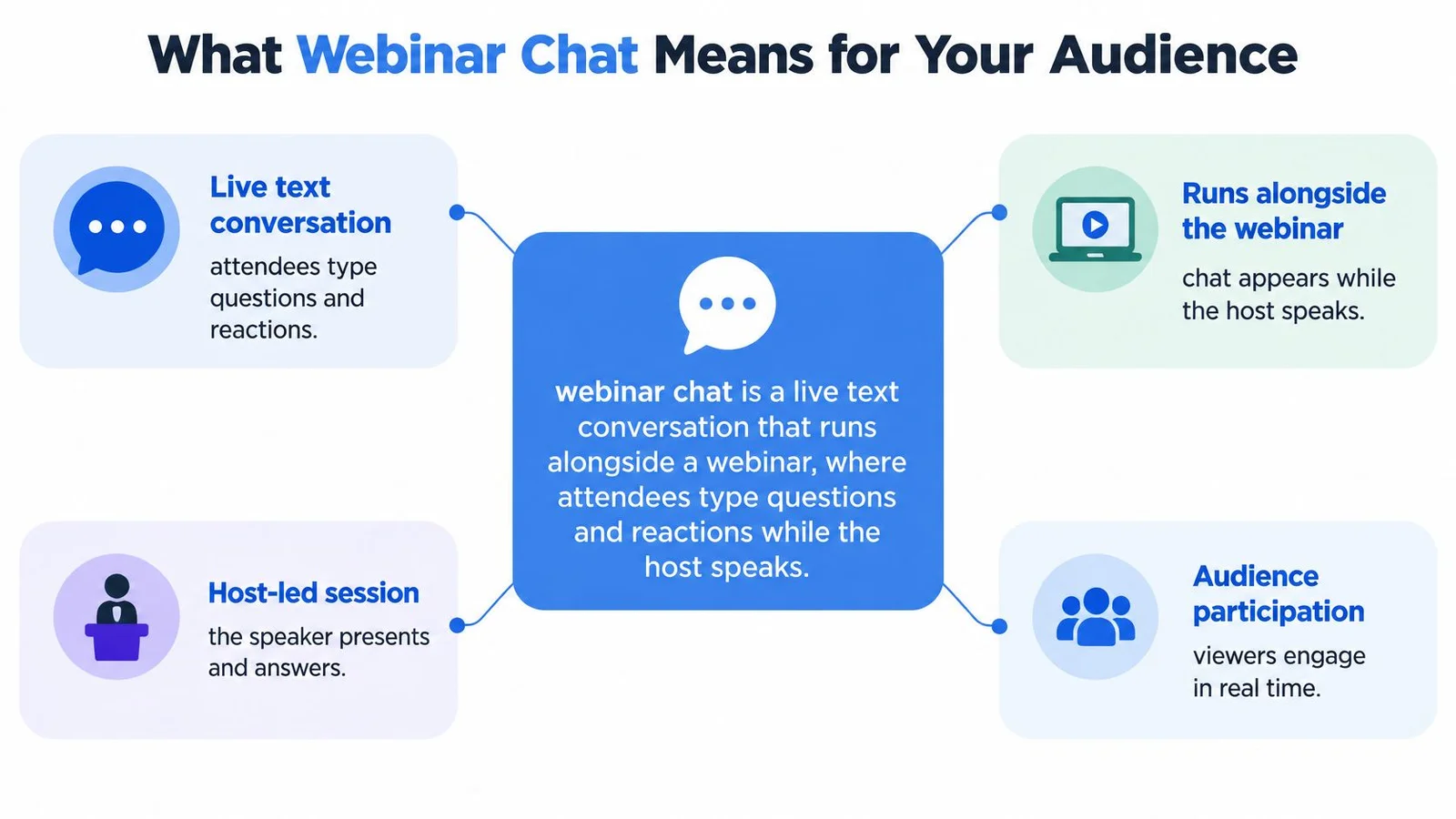
Webinar chat is a live text conversation that runs alongside a webinar, where attendees type questions and reactions while the host speaks.
Say you're demonstrating a course platform. The room looks quiet, but an attendee is wondering whether they can import their existing lessons. Without chat, they might leave with that question unanswered. With chat, they can ask while you're showing the relevant screen.
It works like the hallway conversation after a talk, except the audience can read the answers while the presentation is still happening.
The parts attendees see
- Chat panel: A scrolling conversation for comments, links, and quick exchanges.
- Q&A queue: A separate place to hold questions until the presenter or moderator answers them.
- Reactions: Lightweight signals, such as a thumbs-up, that don't require typing.
Live chat requires people to be present together. Replay chat displays previous messages, or clearly labelled generated messages, at selected points in a recording. A replay viewer's new question needs its own response route, since the original presenter may no longer be online.
Chat can help attendees feel heard, but participation doesn't guarantee satisfaction or longer viewing. Quiet viewers may still be learning. Unlike a private support chatbot, webinar chat serves a shared session under the host's direction. For non-chat options too, our guide to audience participation covers polls, hand-raises, and more.
A useful test: Can an attendee ask a question and receive an answer within the same session?
Why Webinar Chat Lifts Engagement and Sign-ups
Webinar chat and engagement benchmarks
| Metric | Benchmark | Context |
|---|---|---|
| Average attendees per webinar | 239 | Up 11% year over year, ON24, 2025 |
| Registration-to-attendance conversion | 60% | Average across webinars, ON24, 2025 |
| Average engagement time | 49 minutes | Average per attendee, ON24, 2025 |
| Tracked interactions per attendee | 1.8 | All formats combined, ON24, 2025 |
| Poll responses per webinar | 150 | Average, ON24, 2025 |
| Reactions per webinar | 52 | Average, ON24, 2025 |
| Survey responses per webinar | 19 | Average, ON24, 2025 |
| Resource downloads per webinar | 101 | Average, ON24, 2025 |
| Live Q&A questions per webinar | 20.4 | Livestorm, 2026 benchmark report |
| Chat messages per attendee | 0.58 | Livestorm, 2026 benchmark report |
| Share of attendees watching on demand | 50% | ON24, 2025, as reported by MarkStudios |
The ON24 2025 benchmark analysis reports 239 average attendees, 60% registration-to-attendance conversion, and 49 minutes of engagement, alongside the ON24 interaction averages above. Attendance describes audience size, conversion describes who showed up, and engagement time describes how long they stayed, not whether chat caused them to stay. If turnout is the bigger problem, start with how to increase event attendance.
Polls, reactions, surveys, and downloads are different actions. Don't interpret the combined interaction average as a chat-message target.
What participation can support
Chat has a community role when attendees exchange useful questions and recognize shared problems. It has a commercial role when someone asks about implementation, pricing, or product fit and agrees to further discussion.
ON24 also reported a 51% increase in live chat with sales teams and a fourfold increase in meeting bookings during webinars. Those changes show commercial activity within its platform, not proof that adding chat alone produces more sign-ups.
Replay deserves equal planning: MarkStudios' webinar statistics reports that on-demand viewing represented 50% of all ON24 webinar attendees in 2025. Give replay viewers a clear way to submit new questions rather than showing an apparently active conversation nobody monitors. That's the gap FOMOchat was built for: replay viewers see timed questions in context and can still ask their own, which a notification popup can't do.
For practical participation ideas, Formals' guide to keep remote webinar attendees engaged is a useful companion to your webinar marketing strategy.
Treat these platform benchmarks as a scale check, not a forecast. Compare your own chat participation, answered questions, and qualified follow-up requests across events with similar audiences and formats.
Five Real Uses for Webinar Chat
Match the use to the audience's task
Live Q&A. A SaaS trainer answers questions about setup while demonstrating the product. The moderator saves questions that need a specialist and passes the useful answers to the person maintaining the FAQ. The result is a clearer demo and a practical content backlog.
Synced reactions. Students watching a course can signal that an explanation was useful or confusing at a particular lesson moment. Give them a specific prompt rather than asking for constant applause. The result is feedback tied to teaching material, not an undifferentiated reaction count.
Authentic social proof. A newcomer sees another attendee ask the question they were hesitant to raise. That shared uncertainty can make participation less intimidating. The result is reassurance from genuine audience activity, provided you don't present generated dialogue as real testimony.
A simulated question can introduce a useful topic. It cannot establish that a real customer asked it.
Use questions to resolve uncertainty
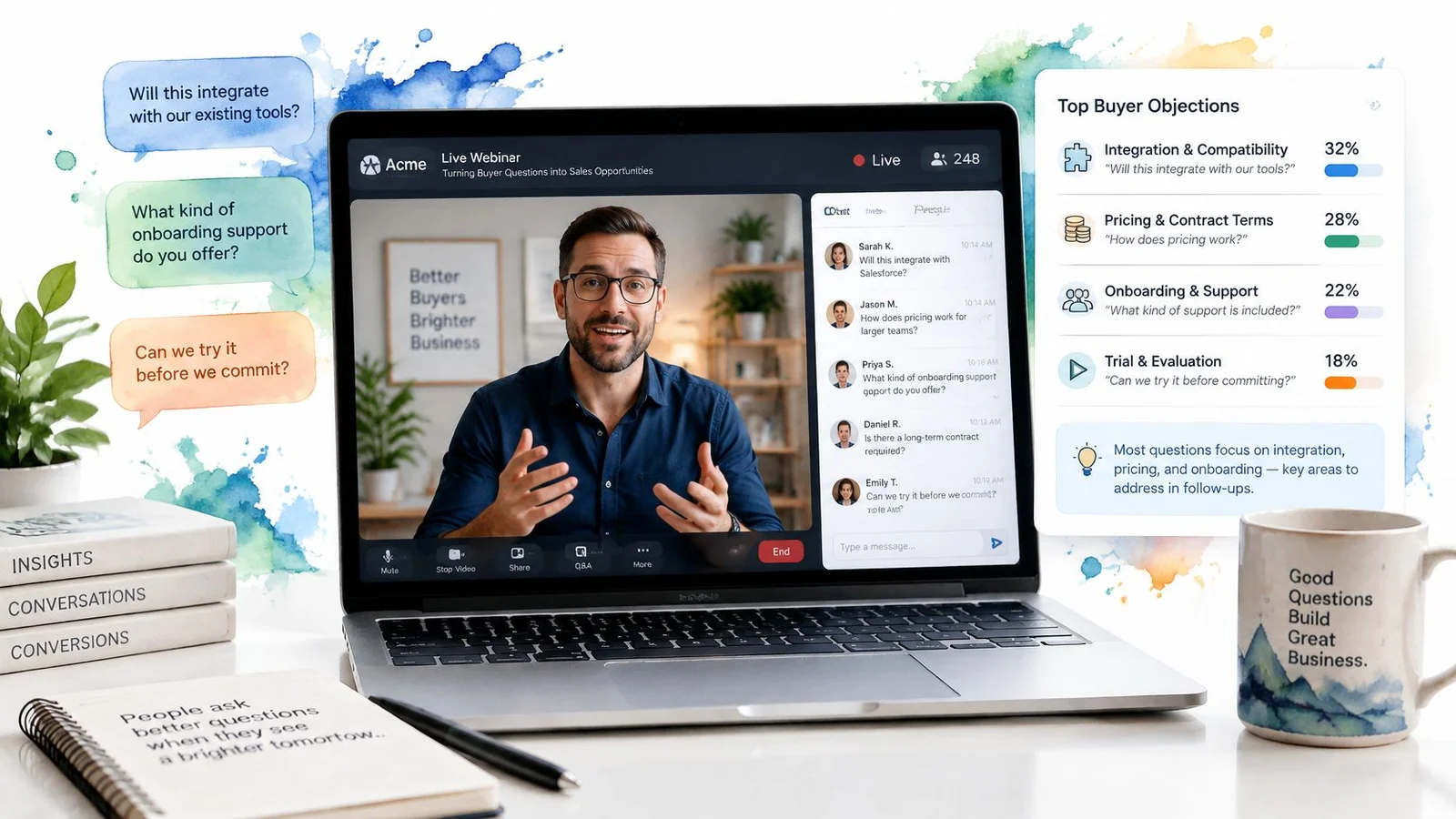
Objection handling. During a launch, several attendees ask about an integration. The moderator flags the repeated concern, and the presenter shows what the integration supports before asking people to buy. The result is a purchase decision based on a clearer understanding of fit. For wording that doesn't sound defensive, borrow from these objection handling techniques.
Replay context. A recording displays earlier questions beside the relevant explanation. Mark them as historical messages and provide a separate way to ask something new. The result is helpful context without implying that past attendees are currently online.
For launches, prioritize unresolved purchase questions. For courses, prioritize understanding and progress. For paid educational events, make it easy to ask for clarification without interrupting the speaker.
Chat isn't always useful. During a short explanation of a complicated diagram, a busy sidebar can divide attention. Pause prompts and let people focus before inviting questions. Quiet doesn't mean lost.
How Chat Syncs With Your Video Timeline
Webinar chat options and how each syncs with video
| Option | Best for | How chat syncs | Setup effort |
|---|---|---|---|
| Live host Q&A | Live events with real speakers | Appears as questions arrive | Moderator time during the event |
| Imported replay chat | Recorded webinars with past chat logs | Plays at the matching video point | Import a compatible Zoom, eWebinar, or other export |
| AI-generated timeline chat | Pitches, courses, and replays without past chat | Fires at set video moments | Generate, review, and label as simulated |
| Landing page timeline chat | Product, launch, and course pages | Starts on page load | Set the timeline and paste a code snippet |
| AI continuation | Visitor follow-up after a script ends | Not suited to tightly timed video | Check fit before using |
Video timing and page timing aren't interchangeable. A page-load timer keeps running when someone pauses a video. Playback-based timing follows the viewer's actual position, so a prompt about a pricing slide doesn't appear while they're still watching the introduction.
Use this sequence to check the alignment:
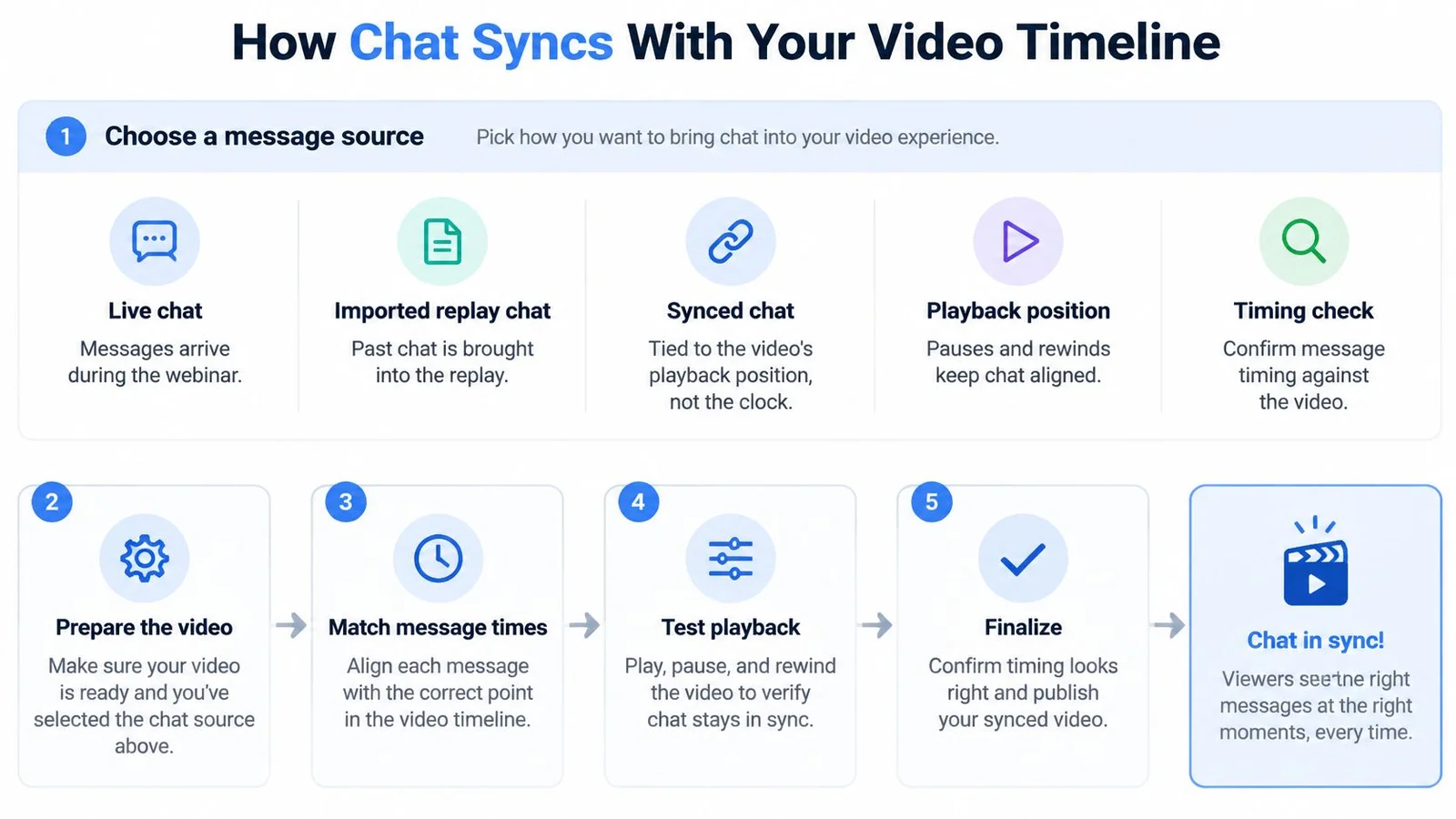
- Choose the source. Use incoming questions, an imported historical log, or reviewed generated messages.
- Set each timestamp. Place the message where its slide, demonstration, or offer is visible.
- Test playback changes. Pause, rewind, and resume. Decide whether repeated playback should show a message again.
- Check on a phone. Confirm the chat doesn't cover captions, playback controls, or the main demonstration.
Separate delivery speed from answering time
Aim for sub-second visible message delivery as an engineering target, not a promise that a presenter can answer every question immediately. An ACM human-computer-interaction study found that response delays above 4 seconds degraded perceived experience, including responsiveness and willingness to interact again.
That finding isn't a webinar-specific deadline, but it supports monitoring delivery lag. Ask your technical team to test reconnects and slow connections, not just average performance on office Wi-Fi.
When distributing the finished replay, LinkShip's guide to send meeting recordings securely can help you plan access separately from chat timing. Choose the message source first, then its timing method.
Best Practices for Hosts Before, During and After
Host checklist for webinar chat
| Stage | Task | Why it matters |
|---|---|---|
| Before | Test chat with a colleague on another device | Catches broken timing and links |
| Before | Set clear chat rules and name a moderator | Keeps the stream on topic |
| Before | Write answers to the top three expected objections | Gives the host a ready response |
| Before | Label any AI-generated messages as simulated | Keeps trust with real attendees |
| During | Pin Q&A rules and answer at set moments | Stops questions getting lost |
| During | Acknowledge questions in the chat | Shows attendees they were heard |
| During | Remove personal data and spam quickly | Protects attendees and the room |
| After | Export the chat and group similar questions | Turns chat into a usable record |
| After | Aim to reply to unanswered questions within one day | Keeps the conversation going |
| After | Add the best answers to the replay | Helps late viewers catch up |
Prepare the answers people are likely to need
Use the checklist as your working reference rather than relying on memory. Decide whether attendees get open chat, structured Q&A, or both, and tell the moderator which questions should interrupt the presentation.
Writing answers to likely objections prevents improvised promises. Prepare approved wording for pricing, integration limits, and setup requirements, with a named person to contact when the answer isn't known.
Simulation labels belong where people encounter the messages, not only in a policy page. Review generated dialogue for invented endorsements, unsupported claims, and statements that imply actual attendance.
Keep participation manageable
Nicknames can reduce the social risk of asking a question. The PresEngage review of audience-response research describes a meta-analysis finding that anonymous response mechanisms increased participation, particularly among reluctant users.
Offer that option without promising untraceability if you retain session records. Explain what the moderator can see, restrict access to exports, and keep enough internal accountability to handle abuse.
Host habit: Acknowledge the question now, even when the complete answer must come later.
Afterward, assign unanswered questions rather than leaving them in an export nobody owns. Use the broader best practices for webinars to coordinate chat follow-up with your recording, email, and event review.
Turning Chat Questions Into Buyer Insight
A busy chat isn't necessarily a useful one. The Livestorm 2026 webinar benchmark report reports roughly 20.4 live Q&A questions per webinar and 0.58 chat messages per attendee, but neither average tells you which questions reveal a purchase barrier.
A greeting, an integration objection, and an unanswered pricing question shouldn't carry equal weight in your analysis. Keep the original text and its video timestamp so another person can check your interpretation.
Tag meaning, not just activity
- Intent: Product objection, pricing, support, or social comment.
- Urgency: Blocks a purchase now, or needs clarification without an immediate decision.
- Buying stage: Exploring, comparing, or ready to buy. Mark this unknown when the message doesn't establish it.
- Status: Answered live, partially answered, or unanswered.
Exclude lightweight reactions from objection analysis and group repeated questions. Keep distinct attendees separate from repeated messages by the same person, and don't assume every participant matches your ideal customer profile.
Turn a repeated question into an assignment
Say attendees repeatedly ask whether your product connects to their CRM. Group those messages under an integration theme, but preserve differences between a native integration, an API connection, and a manual export.
Your summary should contain the theme, its attendee count, a representative question, and an owner. Product marketing might clarify the product-page FAQ; sales might follow up with attendees whose stated requirements need discussion. A solid webinar follow-up email template makes that handoff a lot quicker.
Use conversation analytics to organize that workflow, not to infer buying intent from enthusiasm alone. Exclude simulated messages from customer-demand counts, and distinguish AI suggestions from the audience's actual words.
Accessibility and Privacy Limits to Plan For
Chat is a text channel, not a guarantee of access. Someone may be unable to hear the speaker, read a fast-moving panel, or use its controls with a keyboard. Plan for each route separately.
Arrange captions that fit the event and provide a searchable transcript afterward. Human captioners often handle specialist terminology better than automated systems, so confirm key terms with your captioner before the event.
Make another route available
Keep controls keyboard-accessible and give attendees enough time to read messages. The guide to helpful apps for people with hearing loss offers personal tools to consider, but attendee-installed apps should not replace accessible event design.
Label automatic translations and send important ambiguities to a human. An AI representative can answer routine questions or draft a response. Identify AI responses as AI, and label AI-generated participant dialogue as simulated so readers can distinguish it from real attendee comments.
Give sensitive questions a private route. Accommodation, employment, and compliance concerns may need a confidential response. Share a generalized answer publicly only when appropriate, without exposing the attendee. Escalate pricing or other consequential answers when the meaning or accuracy is uncertain.
Explain whether questions can be submitted anonymously, show how to contact a human, and state what records you retain and for how long.
Before publishing, check:
- No sound: Can someone follow the presentation and its answers?
- Language differences: Is the response clear to a non-native speaker?
- Personal comfort: Can someone request an accommodation privately?
Choose Your Webinar Chat Setup This Week
- Live event with real speakers: Use live Q&A with moderated open chat.
- Recording with past discussion: Import the historical chat and identify it as replay content.
- Pitch or course without past chat: Use reviewed AI-generated timeline messages, labelled as simulated.
- Product or launch page: Use a page-load timeline rather than assuming visitors are watching a video.
These formats call for different presentation choices:
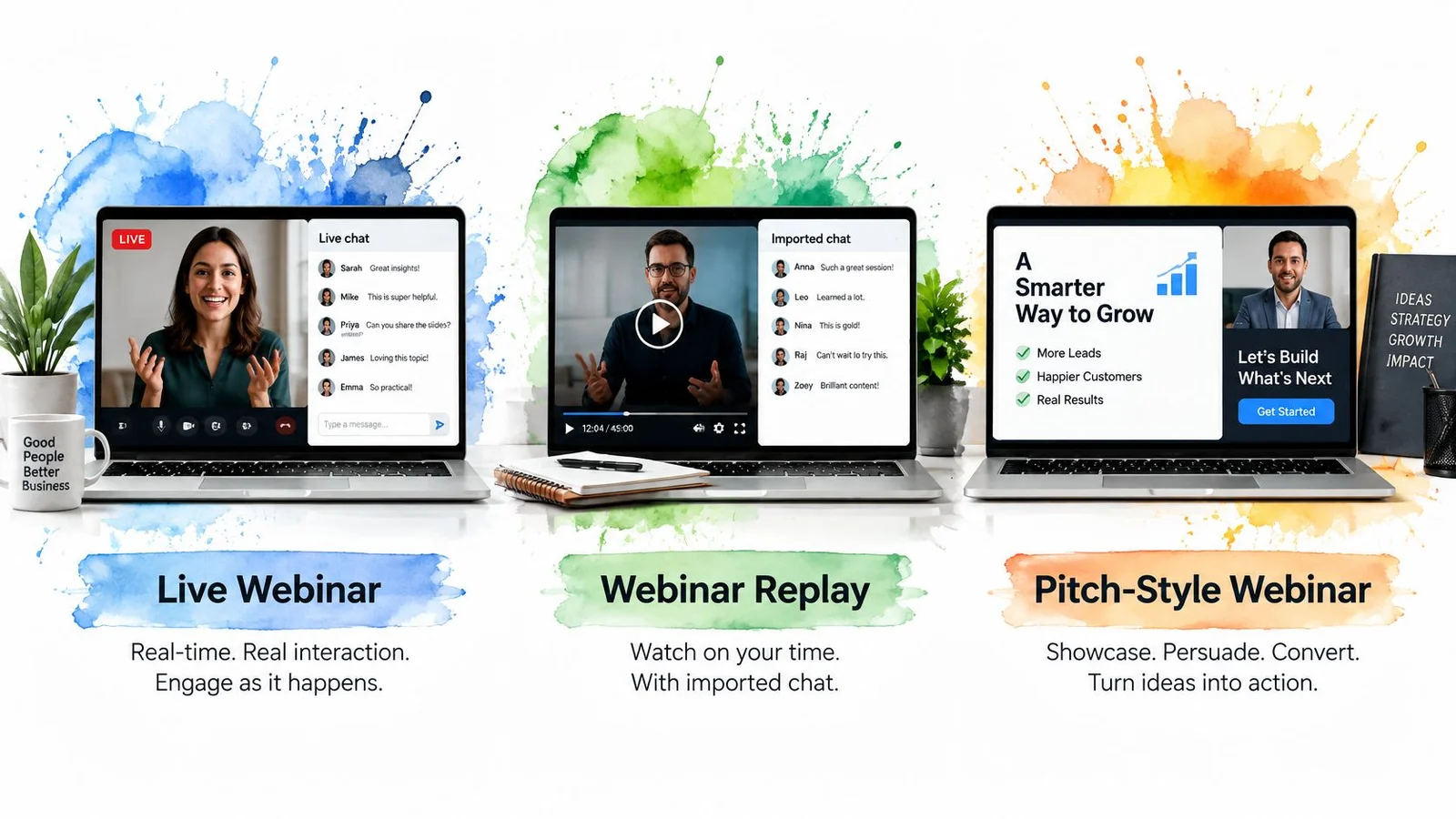
Our FOMOchat setup takes about 5 minutes: enter your website URL, let the AI analyze it, generate a conversation, and paste the code snippet. Video/Webinar Mode synchronizes messages with playback and accepts real chat logs from Zoom or eWebinar. Landing Page Mode follows page-load timing; AI Continuation isn't suited to tightly timed webinars.
Use this demonstration to assess the workflow:
You can book a demo to discuss your webinar setup. When comparing webinar engagement tools, prioritize message provenance, timing, and follow-up over how busy the widget looks.
This week, choose an upcoming event, select its chat format, and run the host checklist before publishing.
FOMOchat lets you synchronize chat with webinar playback, import real conversations, or create AI-generated dialogue that you should clearly label as simulated. Visit FOMOchat to explore the setup or book a demo for your next webinar.